
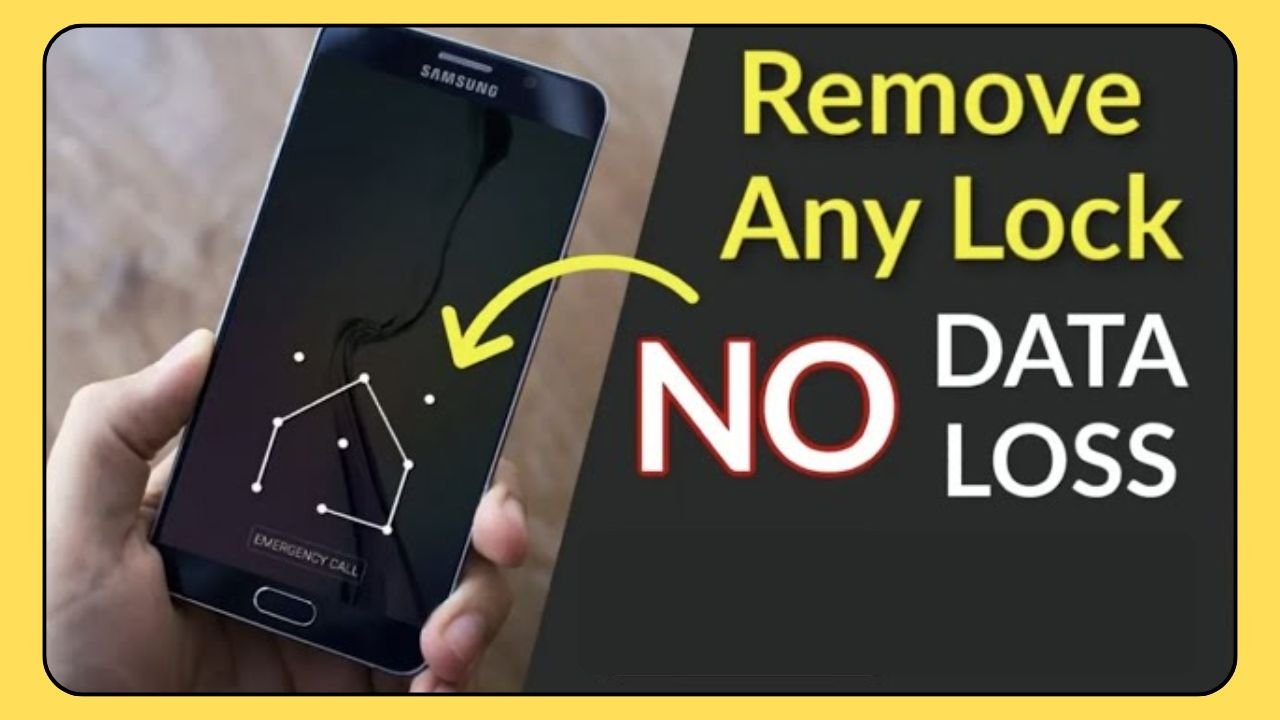
Unlock Pattern Lock: Forgetting your Android pattern lock is more common than people admit. It usually happens on a busy morning, when your phone decides to test your memory instead of unlocking. You draw the pattern confidently – wrong. You try again – still wrong. After a few attempts, your phone politely refuses to cooperate.
If you searched for “unlock pattern lock”, you are not alone. Millions of Android users face this issue every year. The good news is that unlocking a pattern-locked phone is possible, and you can do it legally, safely, and using official methods.
This guide explains how to unlock pattern lock on Android devices, using methods that are verified, realistic, and supported by trusted sources like Google and Android documentation. No myths. No risky hacks. No fake promises.
What Is a Pattern Lock and Why It Exists
A pattern lock is a screen security method introduced by Android to protect user data. Instead of typing a password, users draw a pattern on a 3×3 grid.
Android uses pattern locks because:
- They are faster than passwords
- They work well on touchscreens
- They reduce shoulder-surfing risks
However, convenience comes with one weakness—human memory. Patterns feel easy until you forget one.
Common Reasons People Get Locked Out
People do not forget pattern locks randomly. There is logic behind it.
The most common reasons include:
- Changing the pattern and forgetting it later
- A child entering the wrong pattern multiple times
- Long gaps between phone usage
- Touchscreen issues causing incorrect input
- Buying a used phone without proper reset
Android blocks access after repeated failed attempts to protect your data. This behavior follows Google’s Android security design.
Important Things to Know Before Unlocking Pattern Lock
Before you try any unlock method, keep these facts clear:

- Some methods erase all data
- Google account verification is mandatory after reset
- There is no universal one-click unlock
- Avoid third-party apps claiming instant access
Google clearly states that device security cannot be bypassed without authentication. If someone promises otherwise, they are not being honest.
Method 1: Unlock Pattern Lock Using Google Account (Older Android Versions)
This method works on Android 8.0 and below. Google officially supported this feature to help users recover access.
How It Works
After multiple failed attempts, Android shows a “Forgot Pattern?” option. You can unlock the phone using the linked Google account.
Steps
- Enter the wrong pattern five times
- Tap Forgot Pattern
- Sign in with your Google account
- Verify your identity
- Set a new pattern or PIN
Why This Method Is Reliable
- No data loss
- Official Google recovery process
- Safe and legal
Limitation
Newer Android versions removed this option for stronger security.
Source: Google Android Security Documentation
Method 2: Unlock Pattern Lock Using Recovery Mode (Factory Reset)
This is the most widely used and officially supported method.
What Happens in a Factory Reset
A factory reset removes:
- Pattern lock
- Apps and user data
- Local files
Android resets the device to its original state.
Steps (General Process)
- Power off the phone
- Press and hold Power + Volume keys (varies by brand)
- Enter Recovery Mode
- Select Wipe Data / Factory Reset
- Reboot the device
After reboot, Android asks for the same Google account previously linked to the phone. This protection is called FRP (Factory Reset Protection).
Why Google Uses FRP
FRP prevents phone theft and unauthorized access. It is a core Android security feature.

Source: Google Factory Reset Protection Guidelines
Method 3: Unlock Pattern Lock Using Find My Device
Google provides Find My Device as a remote management tool. It also helps users regain access.
Requirements
- Google account linked to the phone
- Internet enabled
- Location services active
Steps
- Open Find My Device on another device
- Sign in with your Google account
- Select the locked phone
- Choose Erase Device
- Set up the phone again
This method performs a factory reset remotely.
When This Method Makes Sense
- Phone is lost or inaccessible
- Screen is damaged
- You cannot access recovery mode
Source: Google Find My Device Help Center
Method 4: Unlock Pattern Lock Using ADB (Advanced Users Only)
ADB (Android Debug Bridge) is a developer tool. This method only works if USB Debugging was enabled before the lock.
Important Reality Check
Most users cannot use this method because:
- USB debugging is disabled by default
- It requires technical knowledge
- It does not work on newer Android security patches
ADB is not a magic key. It is a developer utility with limitations.
Source: Android Developers Documentation
What About Third-Party Unlock Tools?
This question appears everywhere, so let’s answer it honestly.
The Truth
- No third-party tool can legally bypass Android security
- Many tools violate Google’s policies
- Some steal user data or install malware
Google strongly advises against using unauthorized unlocking software.

If a tool claims “unlock any Android without data loss”, treat it as marketing, not reality.
Is Unlocking Pattern Lock Legal?
Yes, unlocking your own phone is legal.
It becomes illegal if:
- You unlock someone else’s device without permission
- You bypass security for misuse
- You access stolen devices
Android security exists to protect users, not punish them.
How to Avoid Pattern Lock Problems in the Future
Smart prevention saves time and stress.
Practical Tips
- Use a memorable but secure pattern
- Enable fingerprint or face unlock
- Add a backup PIN
- Keep Google account details safe
- Turn on regular cloud backups
A phone should protect you, not lock you out permanently.
Frequently Asked Questions
Can I unlock pattern lock without losing data?
Only if you use the Google account method on older Android versions. Newer versions require reset.
Can a service center unlock my phone?
Authorized service centers can help, but they follow Google security rules.
Can rooting unlock pattern lock?
Rooting requires unlocked access first. It does not solve pattern lock issues.
Final Thoughts
Forgetting your pattern lock feels annoying, but it is not the end of your phone. Android provides official, secure, and logical recovery options. The key is choosing the right method for your situation and avoiding shortcuts that put your data at risk.

If your phone protects your data well, that means Android is doing its job. You just need to follow the correct path back in.
Your pattern preview will appear here.